The OKS schema editor: schemaeditor
Prerequisite
Before running either schemaeditor or dbe you must load the dbe spack
package with spack load dbe. This can have unwanted side effects
like running the wrong version of Python due to spack messing with
your PATH and LD_LIBRARY_PATH. To avoid this, keep your editing
sessions in a different window to your normal development or create an
alias /shell fucntion like:
function schemaeditor ()
{
    bash -c "spack load dbe; command schemaeditor $@"
}
Starting the editor
Just running the command schemaeditor will bring up the
schemaeditor with no schema files loaded. You can then either open an
existing schema file File -> Open Schema (or Ctrl+O) or create a
new empty schema file with File->Create new schema (or Ctrl+N).
To start with an existing schema file, use the -f option.
Setting the 'Active' schema file
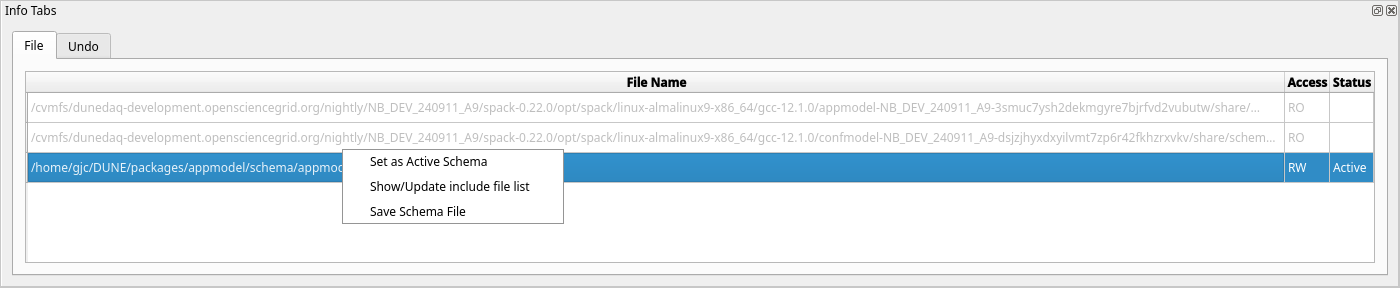
All new classes are created in the active schema file. This will initially be the file you loaded or created above unless the loaded file is read-only. To make another file the active schema file, use the context menu in the files tab (right-click).
NB: You cannot add new classes unless you have made a schema file 'Active'.
Adding include files
Most schema files will want to include at least the core dunedaq
schema (dunedaq.schema.xml) from confmodel. To add an include to the
currently active schema file, either File->Add/Remove include files
(
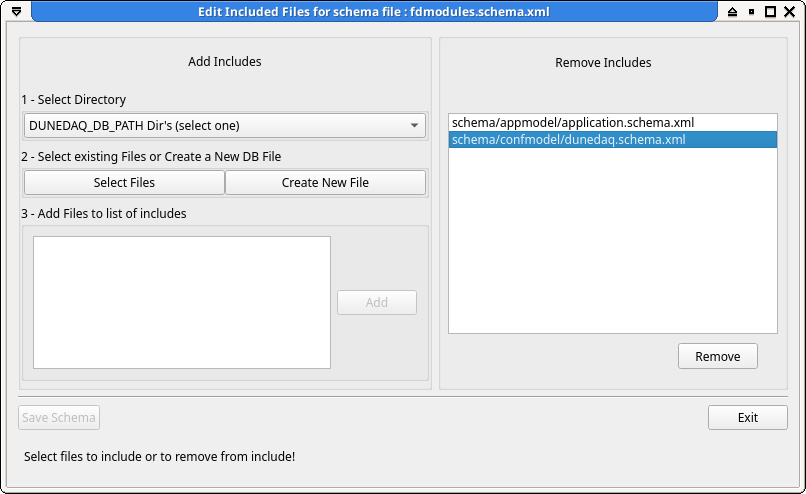
Warning: To get the main widow to update with the updated include file list it is sometimes necessary to click around in the main window until it updates!!
Saving files
To save all modified schema files, File->Save Schema (Ctrl+S). To
save only a single file, use the context menu in the File tab. Tis
also allows you to save files that have not been updated (sometimes
useful to ensure proper formatting of files edited outside of the
schemaeditor.
Adding new classes
To add a new class Ctrl+A anywhere will bring up the new class dialogue box. From here you can define the attributes and relationships of your new class and set its superclass inheritance from the list of existing classes.
Schema diagrams
To create a class diagram of the defined classes, simply drag the classes you are interested in from the 'Class Name' list onto a schema view tab. Relationships and inheritance connections will be automatically drawn. By default, only the direct properties of the classes are shown, to display all properties including those inherited the context menu in the schema view panel icludes an option to toggle inherited properties. The context menu on an individual class within the view allows the addition of all its parent/child/related classes to the view.
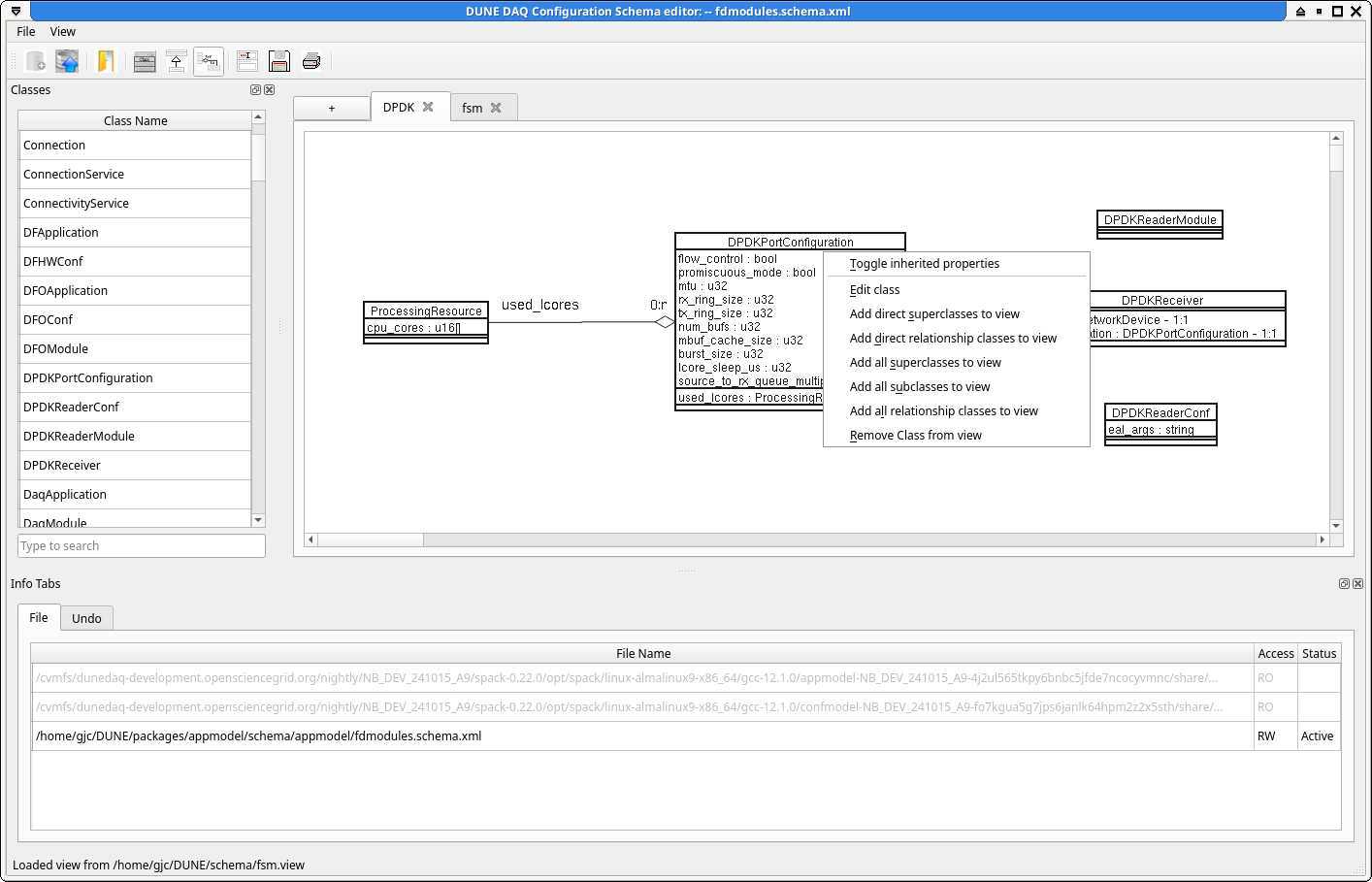
Multiple views of the schema can be created by selecting the "+" button next to the view tabs. A tab can be renamed by selecting the 'Name View' button on the toolbar.
The current schema diagram can be saved from the 'Save View' button on the toolbar or printed via the 'Print View' button.
The View menu allows you to name, load, save and print the view tabs.
Keyboard shortcuts
| Key | Action | Notes |
|---|---|---|
| Ctl-A | Add new schema class | Only available when there is an 'Active' schema file |
| Ctl-N | Create New schema file | Only available when no schema files loaded |
| Ctl-O | Open new schema file | Only available when no schema files loaded |
| Ctl-I | Open include dialog | Only available when there is an 'Active' schema file |
| Ctl-S | Save modifed schema files | |
| Ctl-V | Load View | |
| Ctl-Q | Quit |
Last git commit to the markdown source of this page:
Author: Gordon Crone
Date: Wed Oct 16 09:12:47 2024 +0100
If you see a problem with the documentation on this page, please file an Issue at https://github.com/DUNE-DAQ/dbe/issues